
MyPDFTools review: A handy free PDF toolkit with some rough edges
Read on to learn more, then see our roundup of the best PDF editors for comparison.
MyPDFTools has a clean, intuitive layout. The utilities appear as tiles in the main window and in a left sidebar grouped into six categories: Convert Documents, Organize, Edit & Sign, Optimize, Convert Images, and Security. The sidebar remains after you open a tool, making it easy to move between jobs, while search boxes offer another route to find what you need.
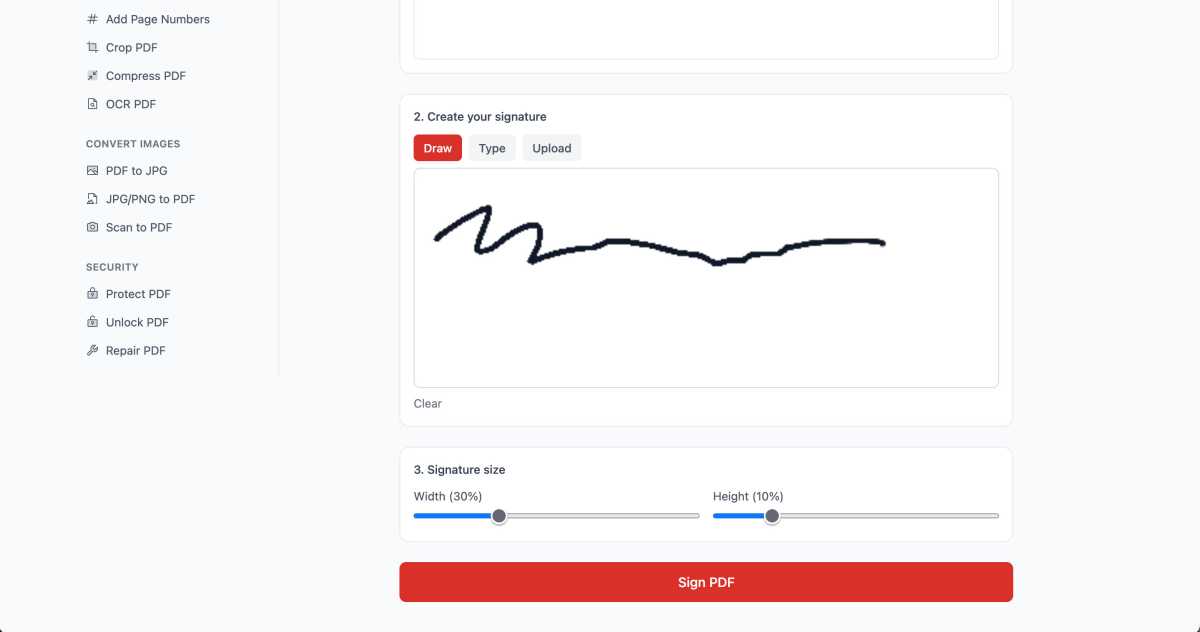
MyPDFTools lets you draw, type, or upload a signature and adjust its size before applying it to a PDF.
Michael Ansaldo/Foundry
Nearly every tool works the same way: Upload your document, choose your settings, and download the processed file. An optional account adds an activity history, and the interface is available in 33 languages.
All 36 tools are currently free, though OCR is marked “Free for now,” so that could change.
Editing and signing PDFs
The Edit & Sign category contains tools for editing and signing documents, redacting text, and “flattening” PDFs—locking in filled form values and removing their interactivity. All four worked in my tests, though the Edit tool offers far less than its name suggests. You’re able to place new text and images over a page but cannot change existing text or add annotations such as highlights, drawings, shapes, or comments. Added text can be resized, but there are no font or color choices.
The other three tools worked as advertised. Redaction lets you drag boxes over material you want removed. The site says it converts each affected page to an image while leaving untouched pages alone; in my download, the covered text could no longer be selected or extracted. Because the entire affected page is rasterized, its remaining text also loses searchability and screen-reader accessibility.
