Summary created by Smart Answers AI
Table of Contents
In summary:
- Windows 10 and 11 users are experiencing a mysterious blank white window appearing on startup or unlock, linked to Google Chrome’s ‘RunPlatformExperienceHelperOnUnlock’ scheduled task.
- PCWorld reports the issue affects both AMD and Intel systems across large desktop areas, though neither Microsoft nor Google has officially confirmed the problem.
- The fix involves disabling the problematic Chrome task through Task Scheduler, which resolves the white window issue without reported side effects.
An increasing number of Windows 10 and Windows 11 users are seeing “white windows” in the corners of their screens, according to BetaNews. (Here’s one example, posted by a Reddit user.)
Affected users are reporting that when they start up, unlock, or restart their Windows PCs, a blank white window appears in a corner of their screen. This white window is significant and covers large parts of the desktop, preventing interactions with on-screen elements.
In some cases, this window disappears after a short time; in others, however, it remains there permanently. Some users have speculated on various theories as to what might be causing it.
Windows Report emphasizes that both Windows 10 and Windows 11 are affected, and that the issue occurs on both AMD and Intel systems. Apparently, Google Chrome is related to the issue somehow—not the browser itself, but a scheduled task associated with it.
There’s a process called “RunPlatformExperienceHelperOnUnlock,” and terminating it prevents the unwanted white window from appearing. According to BetaNews, it’s not entirely clear exactly what RunPlatformExperienceHelperOnUnlock does, while Windows Report writes: “This component seems related to Chrome background activity, which may include interactions with extensions, plugins, update tasks, or external components.”
Users who have disabled RunPlatformExperienceHelperOnUnlock have not reported any unwanted side effects yet, while the unwanted white window has disappeared.
How to resolve the issue
If you’re affected by this issue and seeing weird white windows on Windows, press the Windows key + R keyboard shortcut to open the Run prompt window, then type taskschd.msc and hit Enter to launch the Task Scheduler. In there, on the left-side panel, navigate to Task Scheduler (Local) → Task Scheduler Library → GoogleUserPEH.

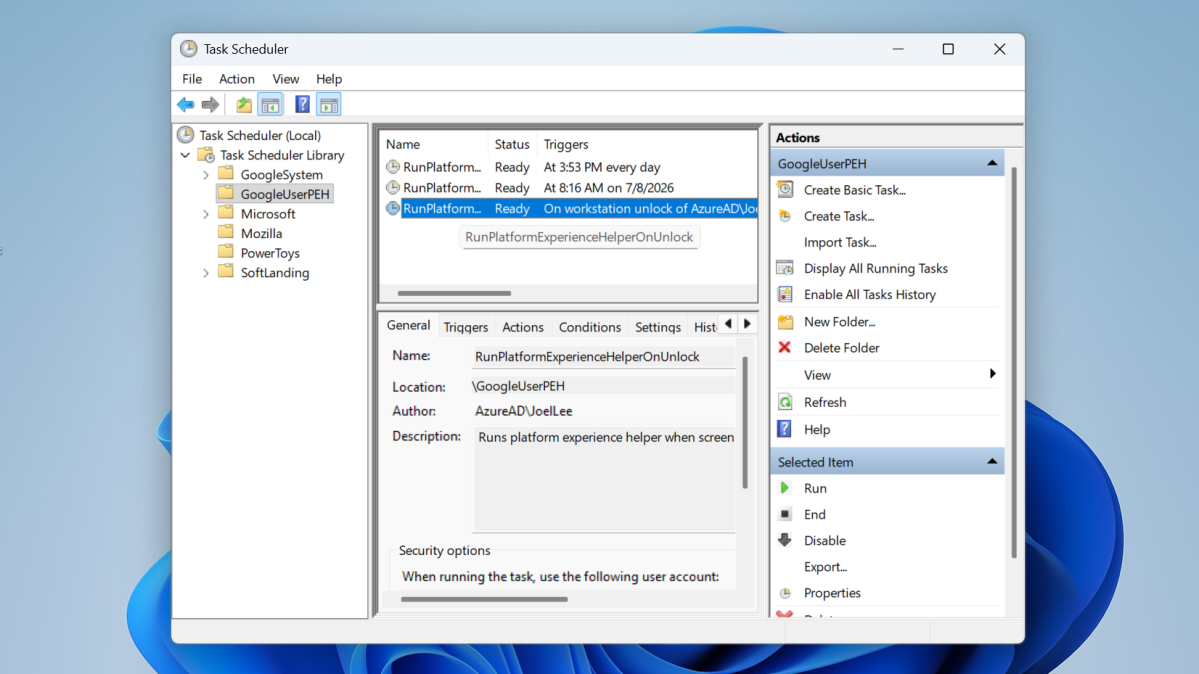
Joel Lee / Foundry
After selecting GoogleUserPEH, look in the middle panel for RunPlatformExperienceHelperOnUnlock. If it’s listed there, you can disable it by right-clicking on it and selecting Disable.
Neither Microsoft nor Google have confirmed the issue as yet.
This article originally appeared on our sister publication PC-WELT and was translated and localized from German.