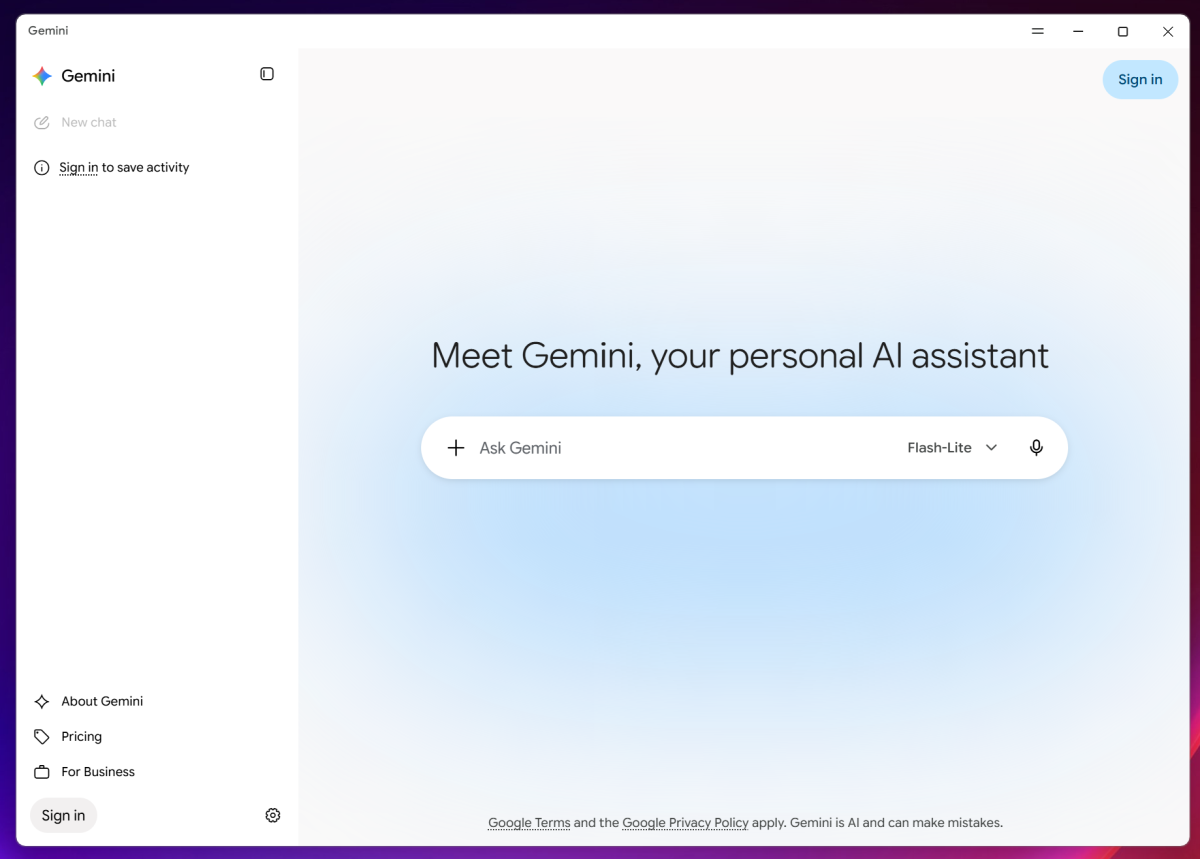
The Gemini app for Windows is a front page of sorts to Gemini’s generative content: the LLM chatbot itself, which is all that appears if you refuse to sign in to Google’s services with a Google account. Once you do, that unlocks the ability to access stored chats, plus dedicated tabs for images, video, and a stored library of the same. Optionally connecting Gemini to your Workspace account (Gmail, Drive, and more) allows access to a “daily brief” of your most important emails.
That should be a productivity boost, right? Well…

Foundry
Competing options, like ChatGPT’s Windows app, allow you to connect the agent to your desktop or services like Slack. There, those agents can take actions for you. Gemini can’t even do that.
Supposedly, one of the new Gemini app features access to Spark, Google’s personalized AI agent, at least in Google’s blog post. I didn’t see it in the app, either as a feature or even a potential upsell. (I’m currently not paying $100 per month to Google to access Spark via a Pro plan, which may have affected what the app showed me.)
Instead, the app directed me to the “Scheduled Actions” via the Settings menu at the bottom of the page, where I could sample Google’s suggestions, such as sending me a recipe every weekend or suggesting a motivational quote every morning.
If you download the Gemini app for Windows, make sure you explore the Settings menu further. There, the “Personal Intelligence” tab will allow you to turn on (or off) Gemini’s memory about you. A separate “Import memory to Gemini” tab allows you to tell other LLMs to summarize what they know about you and then feed that information to Gemini. (My colleague Ben reports that Anthropic’s Claude does this as well.) There are a few other controls to tweak, too.