So, how do we minimize these distractions and stay focused? Let’s talk about managing (or even eliminating) notifications on your Windows PC.
Welcome to PCWorld’s newsletter, Smart Mode! The focus of this newsletter is productivity: from software to hardware to peripherals, all with the idea to get what you need to get done, efficiently.
I’m your host, Mark Hachman, covering the productivity tips, tools, and trends that you need to know about, both from within PCWorld and beyond. If you want the latest issue in your inbox each week, just sign up right here.
Table of Contents
Do Not Disturb (me ever)
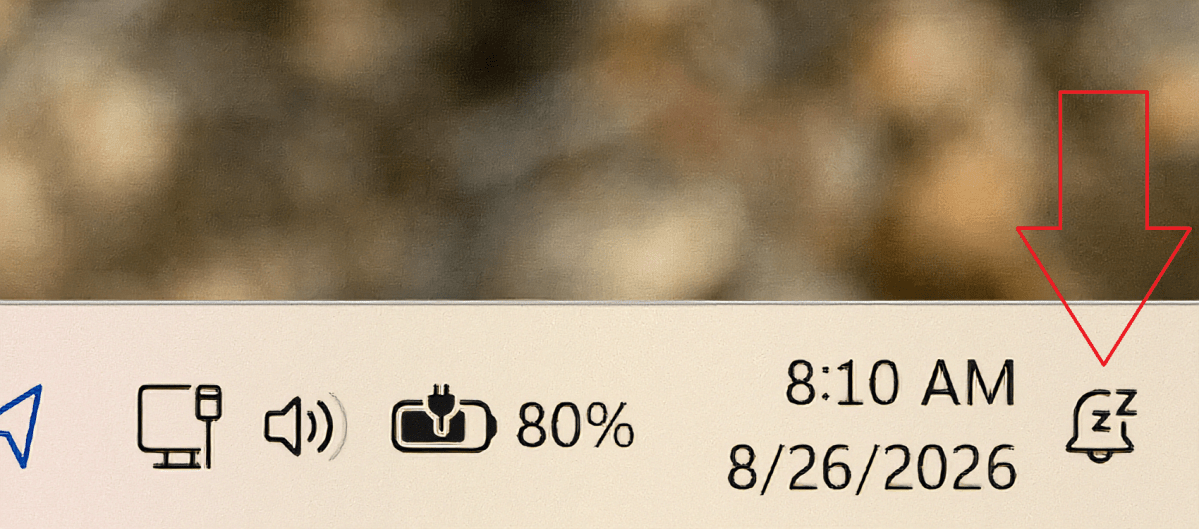
Traditionally, Windows handled this via Do Not Disturb, the teeny little “bell” icon way down in the lower-right-hand corner of the Action Center. Click it (if it’s not already on) and you’ll turn on the feature. A few little “Z’s” visually demonstrate that your notifications are sleeping.
Snoozing your notifications still lets them in; they’ll stack up for future review in a vertical column along the right side of your monitor whenever you open the Action Center. And snoozing your notifications still permits “priority” notifications, including alarms, to trigger. Do Not Disturb is also a feature of Focus Time, part of the Windows updated Clock application. Focus Time assumes that you simply don’t want to be disturbed by extraneous notifications in brief, half-hour periods where you want to jam on a task and complete it.

Mark Hachman / Foundry
I think that’s nuts. Why wouldn’t you want your life completely free of such distractions? Windows already sends you the most inane updates: the results of malware scans, “this day in” Microsoft Photos, a note that it snapped a screenshot using the Snipping Tool. And that’s before all of the third-party content: social media, app updates and promotions, and so on.
At the very least, I’m now convinced that you should leave Do Not Disturb on, perpetually. And I’d like to conclude by proposing a more radical change altogether: Start entirely disabling notifications for most apps.
Managing notifications begins in Settings
Control over your notifications lives in two places inside your Windows Settings menu. The first, Privacy & Security > Notifications, looks intriguingly like it might do something useful, but it really doesn’t. A second set of controls, System> Notifications, is where you can begin taking action.