Laptop batteries can be a bit of a mystery. You’ve been told when you bought your laptop that its battery can last a certain length of time, but can it really last that long? You don’t have to sit on your laurels and guess, you can actively generate a battery report in Windows and see for yourself. Here’s how to do that.
What to do:
- Type CMD in Search to bring up the command prompt.
- Now type powercfg/batteryreport in the prompt.
- At the next line type battery-report.html

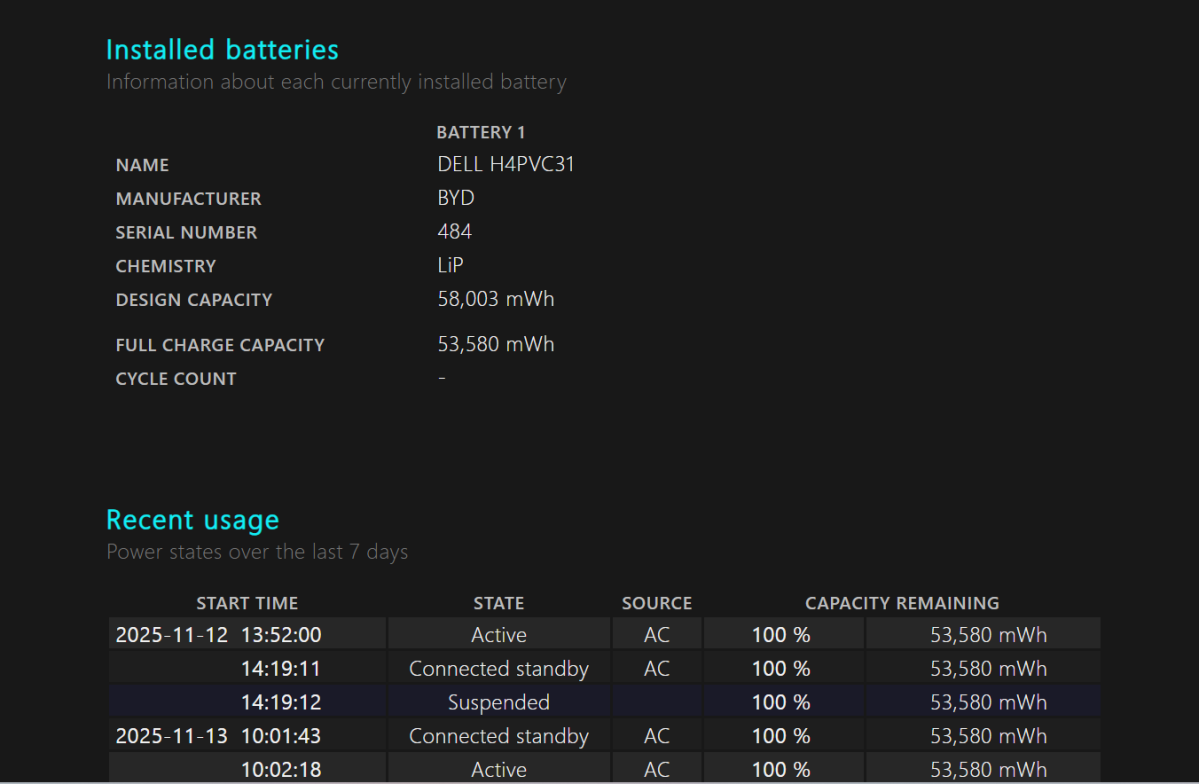
Dominic Bayley / Foundry
And that’s it! You should get a detailed report of your laptop’s battery appear on your screen. You can see its capacity and also see its recent usage history, including the times it was active and inactive. We’ve covered the Windows Battery Report in-depth before if you need help deciphering it.
If you want to test how long your laptop battery lasts, all you have to do is charge your laptop to 100 percent, unplug it, and then leave your laptop on until it runs out of juice, then check your battery report afterwards. You might like to leave a video playing on repeat for the duration of your test.
But before you start, make sure you turn sleep off in Settings otherwise your laptop will go to sleep after a specified number of minutes and you won’t get an accurate reading of battery life.
When you boot up and generate your battery report, your laptop’s battery life will be the length of time the laptop was active before it goes inactive and switches itself off.
That’s it for this Try This. For more tips and tricks, be sure to subscribe to our PCWorld Try This newsletter.