If your PC isn’t performing as expected despite a powerful CPU and fast graphics card, the RAM might be the culprit. Modern apps and games process huge amounts of data, and if your RAM can’t keep up, the CPU ends up slowing down.
You can check for a RAM bandwidth bottleneck directly in Windows 11 by opening Task Manager (Ctrl-Alt-Del) and monitoring the ‘CPU’ and ‘Memory’ sections while running a demanding program or game.

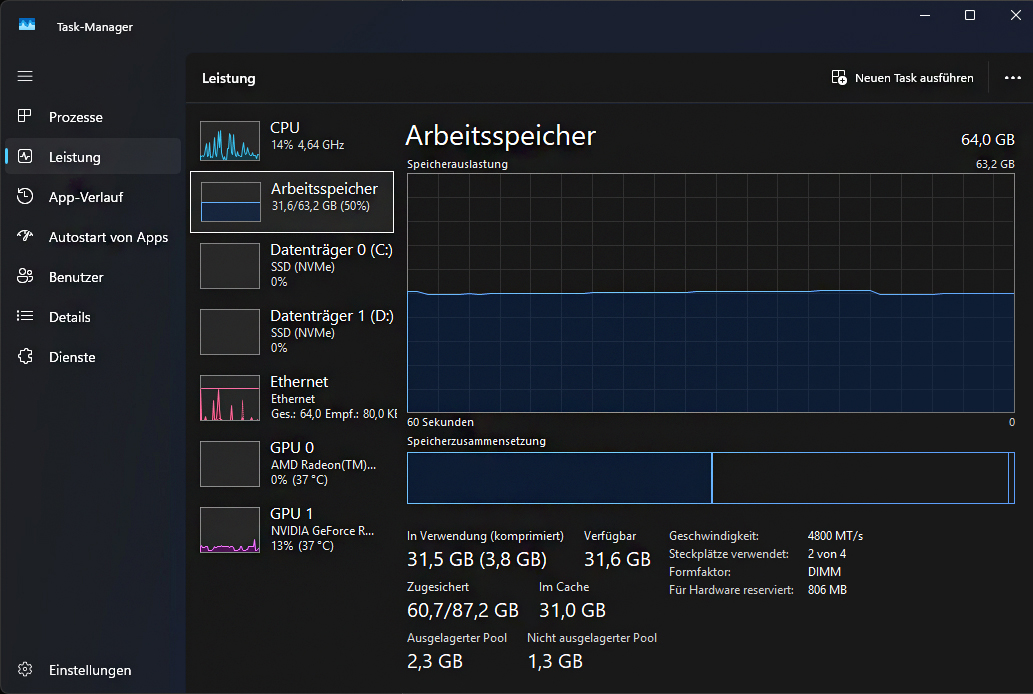
The Windows Task Manager displays RAM usage and memory bandwidth. This helps identify a potential bottleneck in the RAM.
Foundry
If the CPU is under heavy load while the RAM repeatedly hits its limits or shows unusually high latency, this often points to a memory problem. Also, pay attention if CPU usage fluctuates or remains low, even when an application should demand more performance.
You can find more information in Task Manager under the ‘Memory’ tab. Here you can see not only the clock speed of your RAM, but also whether it is running in single-channel or dual-channel mode. To check this, look at the ‘Slots In Use’ entry. In our example, the RAM is running in dual-channel mode, with “2 of 4” slots in use.
An incorrectly configured motherboard is a common source of errors, but it can usually be quickly rectified. You should also use small diagnostic tools such as CPU-Z, which display precise timings and effective clock frequencies. If these don’t match the manufacturer’s specifications, your RAM may only be operating at its base clock speed.
If a bandwidth bottleneck is confirmed, there are several steps you can take. The most important thing is to enable XMP (for Intel platforms) or DOCP (for AMD platforms) in the BIOS. These profiles ensure that your memory modules run at the intended clock speed and with the correct timings.

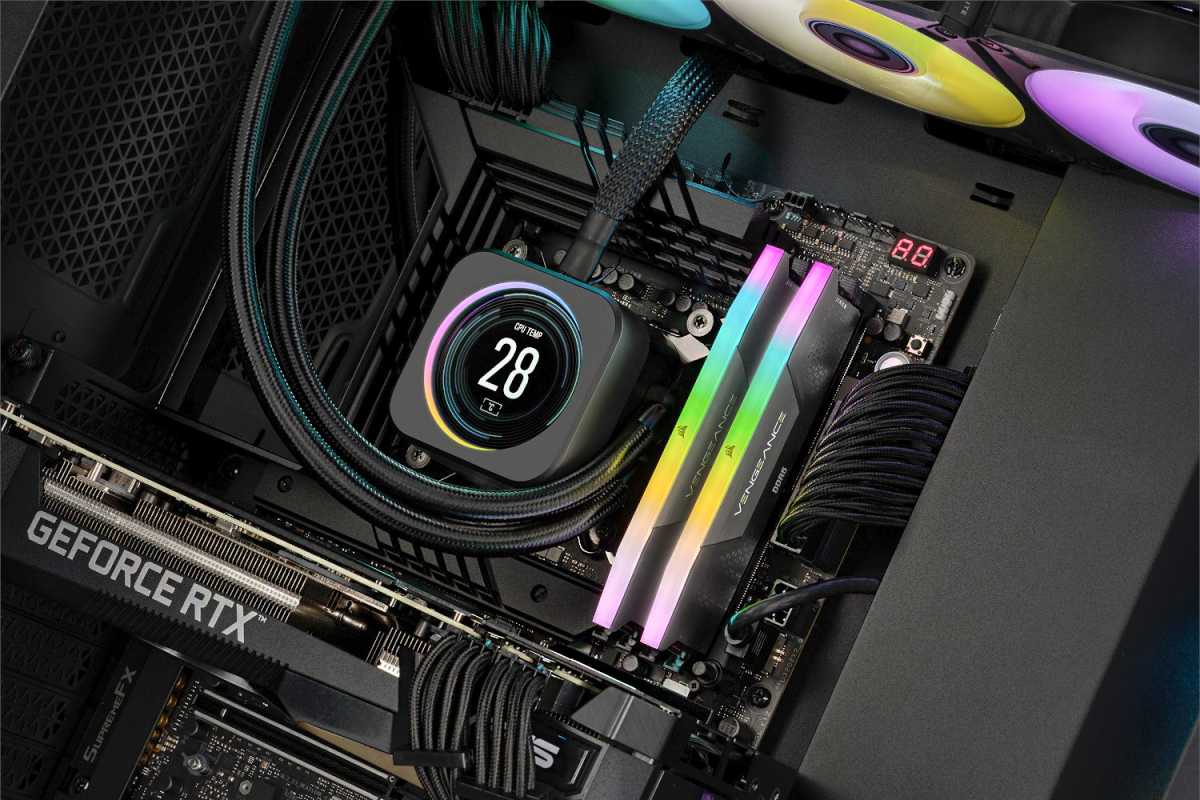
Insufficient RAM bandwidth can slow down the entire system. It is worth checking the RAM’s operating mode, timings and clock speed.
Foundry
Many systems use only the base clock speed without active XMP, which wastes performance potential. Also, make sure you install the modules in the correct slots to utilize dual-channel; your PC manual or the motherboard can guide you.
If your RAM is too slow, you might want to consider an upgrade. Faster memory with a higher clock speed and tighter timings can provide significantly better support for the CPU. Increased memory capacity also helps systems that frequently reach their capacity limits.
In some cases, it may be worth completely overhauling the RAM configuration and switching to two or four matching modules.
Overall, a balanced hardware combination is the key to a fast system. When the CPU, motherboard, and RAM work together optimally, applications and games benefit noticeably from the higher bandwidth. A few targeted steps can help you identify and eliminate bottlenecks, letting your computer run at full capacity again.
This article originally appeared on our sister publication PC-WELT and was translated and localized from German.