The tradeoff is depth. JOPDF lacks some of the advanced tools aimed at professional workflows, including higher-end document production, accessibility, and security features. It’s better thought of as a capable general-purpose editor than a full Acrobat Pro replacement.
Read on to learn more, then see our roundup of the best PDF editors for comparison.
Editing and everyday PDF tools
JOPDF has a straightforward interface. The home screen puts its primary tools front and center, with large tiles for common tasks such as editing, OCR, batch processing, compression, page organization, encryption, and form filling. Open a document and it appears in a tab, allowing you to move among multiple PDFs without opening separate windows. There’s surprisingly little clutter. I didn’t encounter ads, upgrade banners, or account prompts, and the interface is easy to get around even if you haven’t used a full PDF editor before.

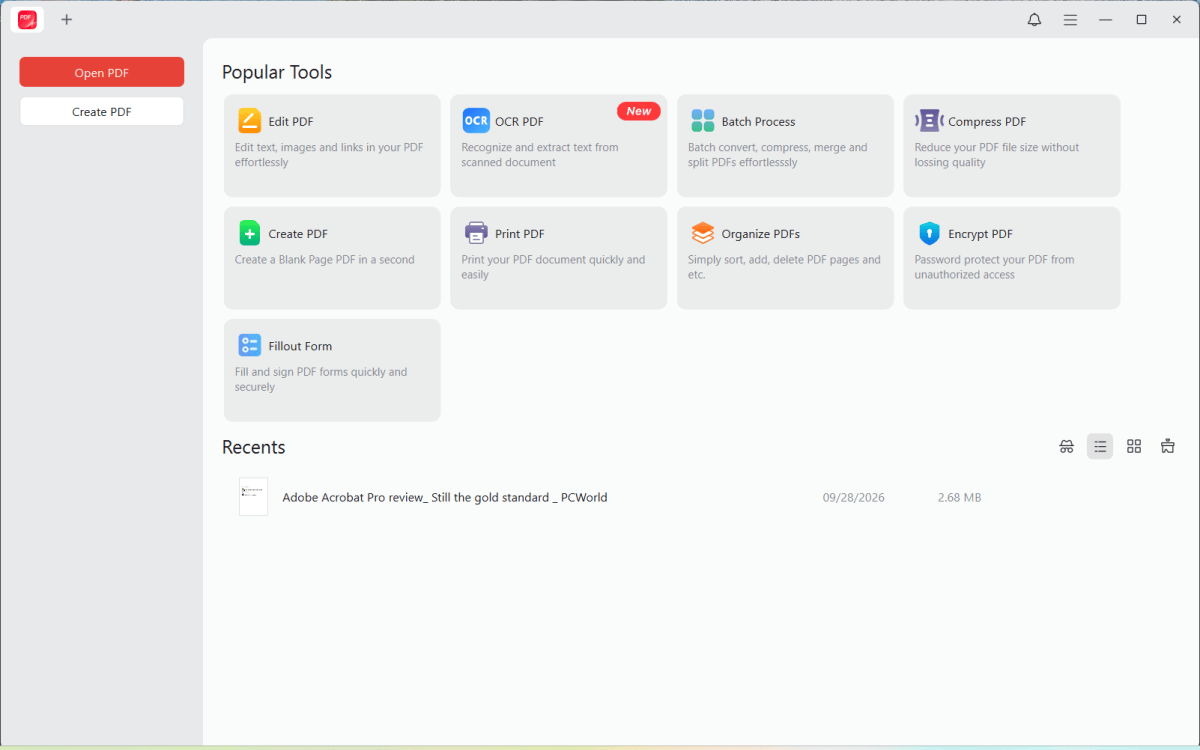
JOPDF’s home screen puts its core tools front and center/
Michael Ansaldo/Foundry
JOPDF uses a familiar desktop PDF-editor layout. Open documents appear in tabs, with the main tools organized across the top into View, Edit, Convert, Annotate, Page, and Protect categories. A collapsible sidebar provides page thumbnails and other document-navigation tools, while viewing controls sit directly above the document.
JOPDF gives you two ways to work with text. When you click an empty area of the page, you can add a new text box; selecting a block of existing text allows you to edit it inline. In the latter case, text reflows within the existing block as you add or remove words, which makes editing feel much more natural.
Images are handled as independent objects. Once you insert one, a floating toolbar displays controls to crop, rotate, flip, and adjust its opacity. You can also move or resize it directly on the page. But JOPDF doesn’t reflow surrounding text to accommodate the image, so they have to be positioned in available blank space.