
Lock down your Windows 11 taskbar so no one else can change it
There are two ways to do this: you can freeze the current settings or prevent users from making changes to the taskbar. Both can be done using the Registry or Group Policy.
The Group Policy Editor is available in Windows Professional, as well as the Education and Business editions. To completely prevent changes to the taskbar using the Registry, type regedit into the search box and click on Registry Editor. Now, navigate to this folder: HKEY_CURRENT_USER\Software\Microsoft\Windows\CurrentVersion\Policies\Explorer. Select Explorer. Right-click in the right-hand pane and choose New → DWORD (32-bit) Value.
Name the new value TaskbarLockAll. Right-click on it, select Modify, enter 1 as the value, and confirm by clicking OK.
Foundry
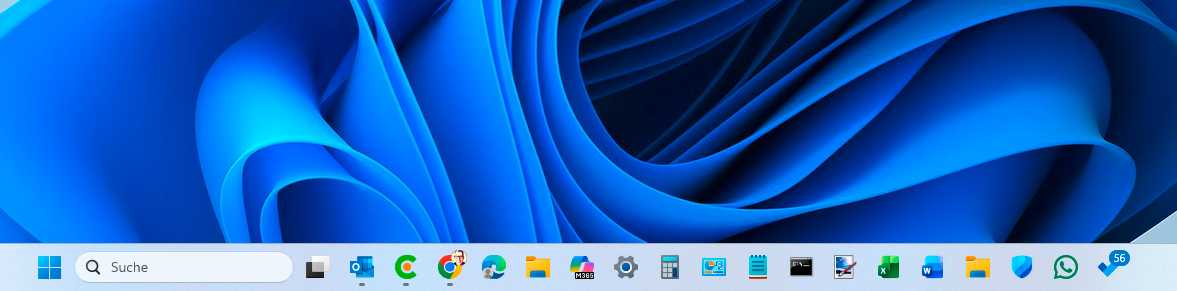
Now go to Personalization → Taskbar in Windows Settings. Some options (like the option to automatically hide the taskbar) will be greyed out. You’ll find the same setting in the Group Policy Editor. Type gpedit into the search box and open the editor.
Go to User Configuration → Administrative Templates → Start Menu and Taskbar, and double-click Lock all Taskbar Settings. Select Enabled and confirm by clicking OK.
To prevent standard users from making changes to the taskbar, open the Registry and navigate (again) to the folder HKEY_CURRENT_USER\Software\Policies\Microsoft\Windows\Explorer. Right-click in the right-hand pane and select New → DWORD (32-bit) Value.
