
Tech News
Outlook’s oft-forgotten Quick Steps lets me manage my email in a flash
Do you find that managing your email—categorizing, forwarding, and deleting takes a lot of your time? Well, there is a way you can manage your email in a lot less time. You just have to use Quick Steps in Microsoft Outlook. Here’s how to use it.
What to do:
- Click on the arrow next to Quick Steps in the upper panel.
- Now in the menu that appears click Manage Quick Steps.
- Now click Add Quick Step. This is where we structure our Quick Step.
- Give your Quick Step a descriptive name so you know what it does. In this example I’ll call it “Sort email.”
- Select the action that you’d like to set the Quick Step to do to the email. You can select multiple actions if you like. For this example, I’ve set the Quick Step to move the email to a selected folder named “Keep.”
- Now save the Quick Step.
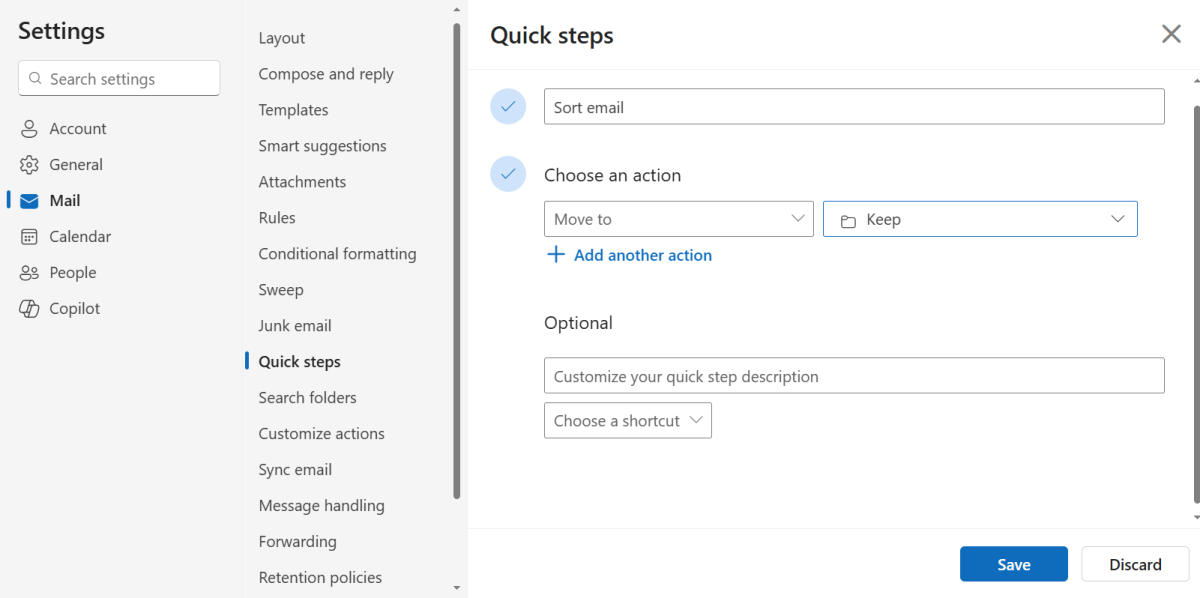
Dominic Bayley / Foundry
Now to have the Quick Step perform the selected action, select an email and click on the Quick Step that you just created in the upper panel. In this example, my selected email was sorted automatically into my “Keep” folder when I selected the Quick Step.


That’s all there is for this Try This. If you want more tips and tricks like this one, be sure to subscribe to our PCWorld Try This newsletter.


