Prices for RAM have risen significantly recently, and this is hitting many PC users particularly hard, especially when it comes to DDR5 modules. A current 32-gigabyte kit will cost you around $400 in 2026, depending on the clock speed and latencies. Prices can be even higher for well-known brands and faster modules.
If you’ve only recently upgraded or are using an otherwise well-optimized system, you don’t necessarily need to reach for your wallet just yet. With the right settings and habits, you can work and play noticeably more efficiently even with 16- or 32GB. The most important starting point is Windows 11 itself:
First, open the Task Manager using the Ctrl-Shift-Esc key combination and get an overview of which programs are actually using RAM when idle. Many applications remain active in the background even though they are not currently needed.
Messenger apps, music streaming services, game launchers such as Steam, or RGB tools often reserve several hundred MB of RAM without providing any real added value. Make a habit of closing these programs before launching a memory-intensive game or a demanding application. An even more effective approach is to clean up your startup settings so that such tools aren’t loaded at all during boot-up.

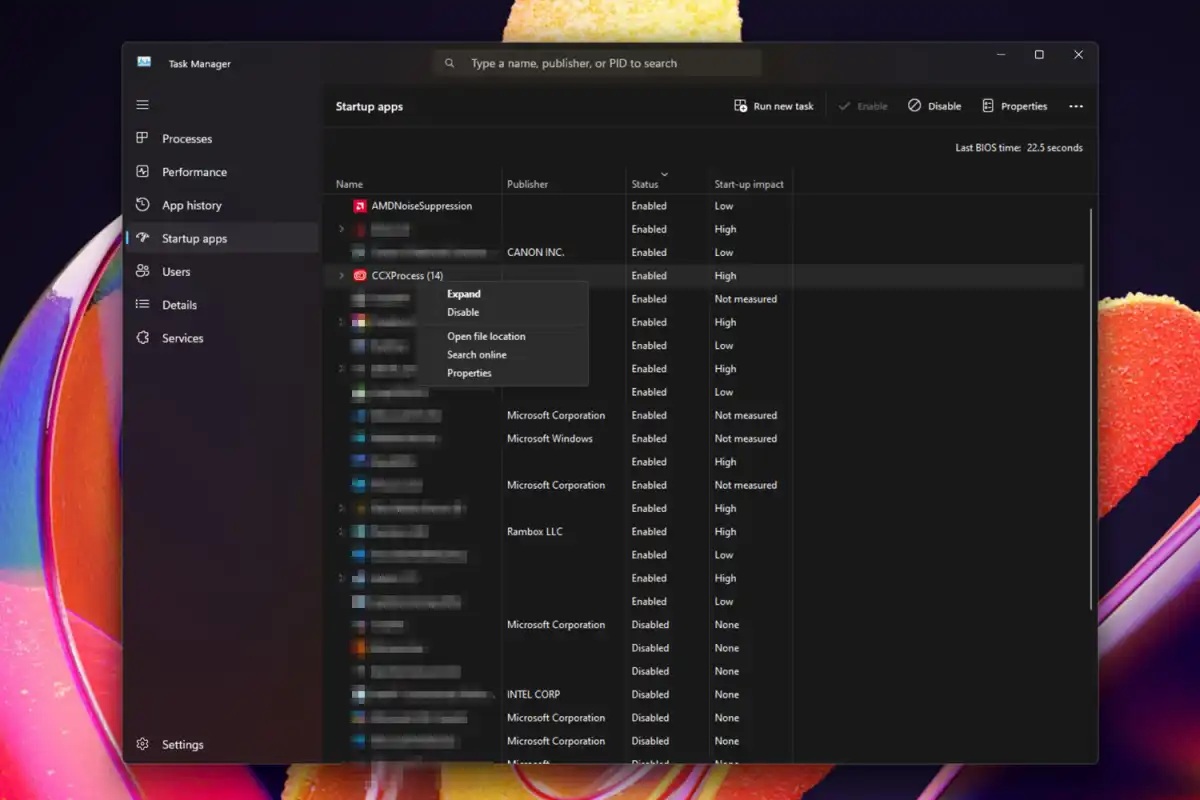
To free up RAM capacity, you should clean up the Windows startup. This will also generally speed up the system boot-up process.
Jon Martindale / Foundry
To do this, click on ‘Startup apps’ in Task Manager and then disable the programs you do not need immediately after Windows starts. Usage behavior also plays a greater role than is often assumed: Programs and games that run for long periods can block more and more RAM through so-called memory leaks without releasing it again.
If you’re gaming or working for several hours at a stretch, it’s worth briefly restarting the application or, if in doubt, even Windows 11 itself. This reliably resets the allocated memory and can eliminate micro-stutters or brief freezes without requiring new hardware. Another option is managing Windows’ virtual memory:
The system moves data from RAM to the hard drive as soon as physical RAM runs low. Especially with a fast NVMe SSD, this can improve stability, even though it doesn’t replace actual RAM. You can adjust the size of the paging file in the Windows 11 system settings:
Use the Windows-R shortcut to open the Run window, type sysdm.cpl and press Enter. In the new ‘System Properties’ window, select the ‘Advanced’ tab. Under ‘Performance,’ click ‘Settings’ and select the ‘Advanced’ tab. Then, under ‘Virtual memory,’ click on ‘Change.’

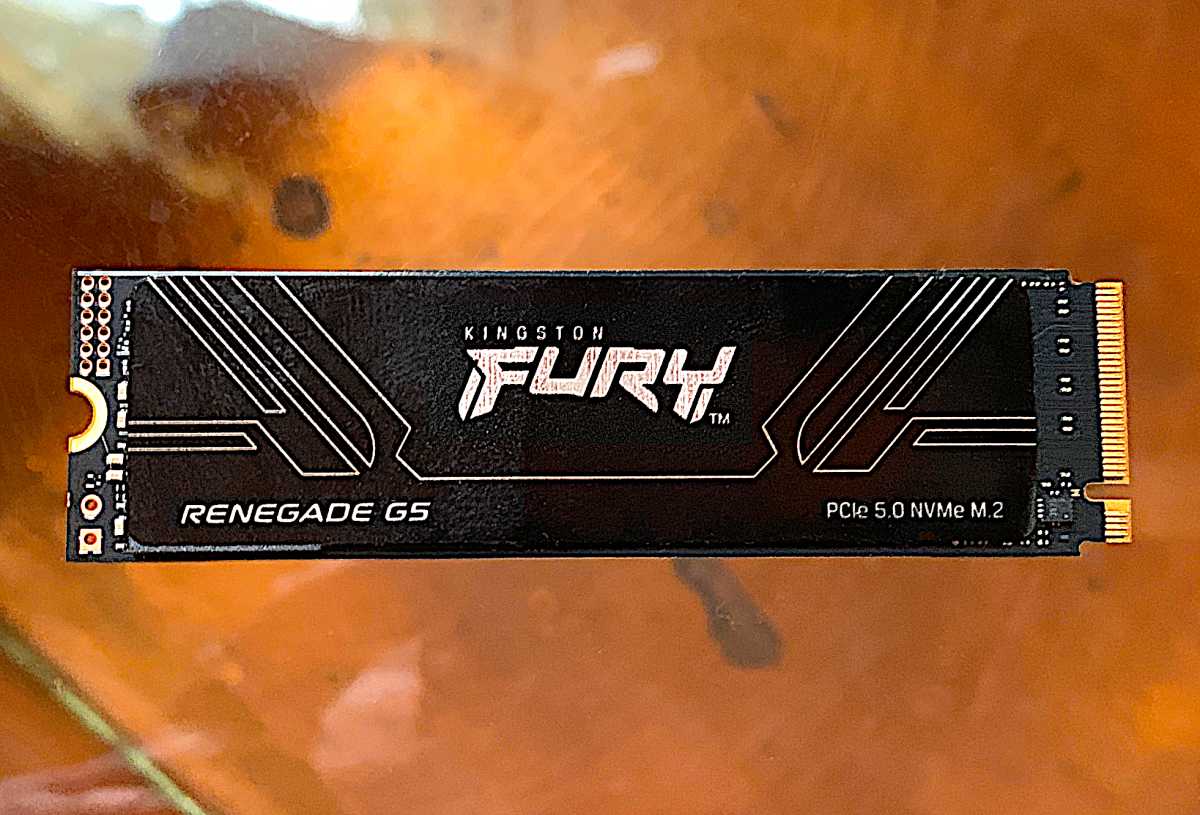
If you have a fast NVMe SSD, you can use virtual memory to cleverly work around a RAM bottleneck.
Jon L. Jacobi
A manual setting of around one and a half to three times your existing RAM capacity is considered a practical guideline if you regularly run out of memory. It is important that there is enough free space on the system SSD. Specialized memory cleaning tools do have a dubious reputation, as many applications do little more than what Windows does itself anyway.
Nevertheless, they can be useful — for example, if a program fails to release memory correctly. If you want to give it a try, you should opt for an established program such as CCleaner or the open-source alternative BleachBit. Monitor closely whether the system’s performance actually improves. However, you shouldn’t expect miracles from these tools.
When gaming in particular, it’s also worth checking for applications running in the background, such as browsers. Modern browsers can use several gigabytes of RAM with many tabs open. Close any windows you don’t need, or use separate profiles to limit memory usage. Overlays from platforms or drivers also add up faster than you might think.
The bottom line is that RAM is currently too expensive to waste unnecessarily. With a little discipline when managing background programs, adjusted virtual memory, and occasional restarts, the lifespan of an existing system can be significantly extended.
If you consistently follow these steps, you can often easily postpone buying a new 32-gigabyte kit without having to put up with any noticeable drawbacks in your day-to-day use.
Related content
This article originally appeared on our sister publication PC-WELT and was translated and localized from German.