If that doesn’t work, however, it’s time to try a few other strategies. Windows 11 now offers a surprising array of repair, recovery, and troubleshooting options to keep your PC working hard for you.
Welcome to PCWorld’s newsletter, Smart Mode! The focus of this newsletter is productivity: from software to hardware to peripherals, all with the idea to get what you need to get done, efficiently.
I’m your host, Mark Hachman, covering the productivity tips, tools, and trends that you need to know about, both from within PCWorld and beyond. If you want the latest issue in your inbox each week, just sign up right here.
Troubleshooters: tried and true
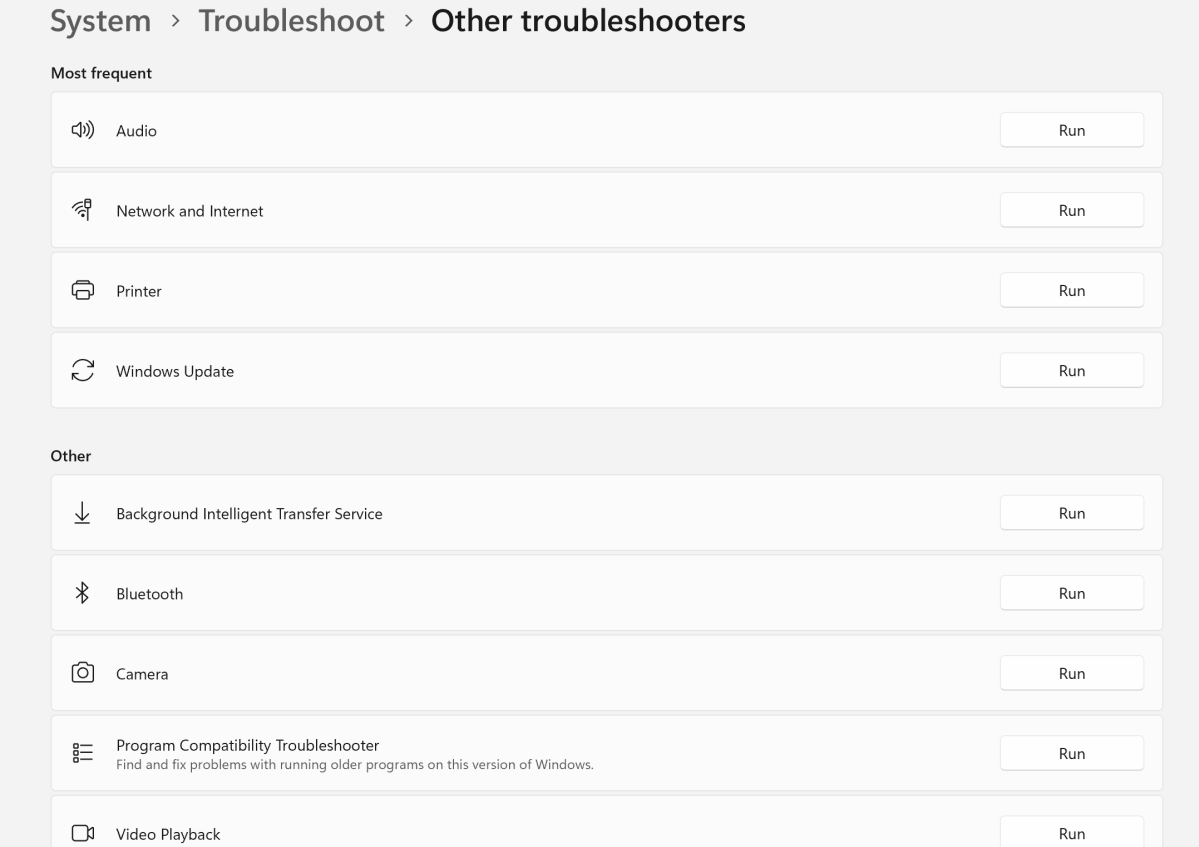
I’d swear that Microsoft said that it was getting rid of its Windows 11 PC troubleshooters, but they’re still the first place I go if I have a problem with my PC. The controls can be found within the System > Troubleshoot menu within the Windows 11 Settings. Supposedly, they’re somewhat autonomous, as my PC directs Windows to ask me before running them. (To my knowledge, it never has.)
I immediately jump down to System > Troubleshoot > Other troubleshooters — which is what you want, and it feels a little odd that Microsoft is hiding them here. If my laptop is having issues connecting to the Internet, I run the “Network and Internet” troubleshooter. Occasionally I’ll have reason to run the “Printer” troubleshooter, and I’ve run the ‘Windows Update” troubleshooter once before, too.

Mark Hachman / Foundry
Each troubleshooter simply launches its own procedure to solve the problem, and usually does. (At one time, this is what I thought Copilot running locally on your PC might do, and I wonder if Microsoft could one day dedicate its own troubleshooting AI agents within Windows to solving these problems.)
If your PC somehow fails to boot, Microsoft also has what it calls Quick Machine Recovery, which is basically an automatic cloud-based troubleshooter. It should run automatically and is on by default inside the Settings menu (System > Recovery > Quick machine recovery), too.
But wait — Microsoft has other troubleshooting solutions that you might not know about!