
Your 4TB SSD probably has the wrong cluster size for large files
However, if you’ve stored everything on a single partition, you’ll have to laboriously back up terabytes of data before reinstalling, or risk losing it when formatting the drive.
By separating the operating system onto partition C: and your user data onto partition D:, you can completely wipe and reinstall Windows, while your game collections, video projects, and documents on the second partition remain completely untouched. This not only saves time but also spares you a lot of stress in crisis situations.
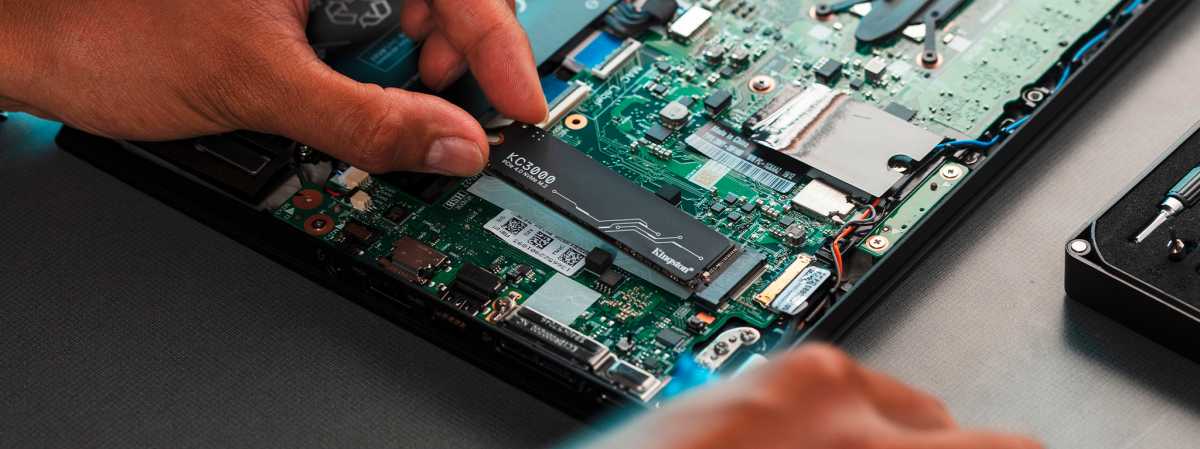
You should partition high-capacity drives – for greater data security, more efficient backups and easier system recovery.
Kingston
To implement this optimization, you must first analyze your current configuration. To do this, open the Command Prompt with administrator rights and enter the command fsutil fsinfo ntfsinfo C:, then press the Enter key to confirm. Look for the value ‘Bytes per cluster’ in the results.
By default, Windows uses 4KB, which is ideal for the system partition to minimize fragmentation when dealing with many small system files. However, for data-only partitions where you mainly store large files such as 4K videos or backups, it makes sense to adjust the cluster size to 64KB.
Here’s how to do it: The neatest way to change the cluster size in Windows 11 is via Windows Settings. Press the Windows + I key combination to open Settings. In the left-hand menu, navigate to ‘System’ and then click on ‘Storage’ on the right. Scroll down to the ‘Storage management’ section.
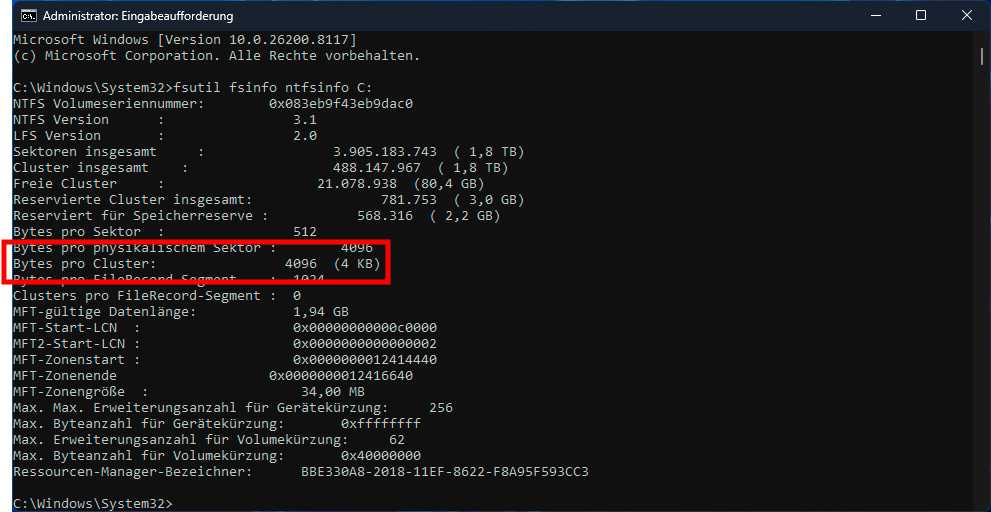
A size of 4KB is ideal for system partitions. However, if the partition is to be used as a data partition, a cluster size of 64KB is recommended.
Foundry
Next, expand ‘Advanced storage settings’ and select ‘Disks and volumes.’ A list of all physical drives will appear. Click the arrow next to your hard drive to view the associated partitions (volumes). Select the desired data partition and click the ‘Properties’ button.
